

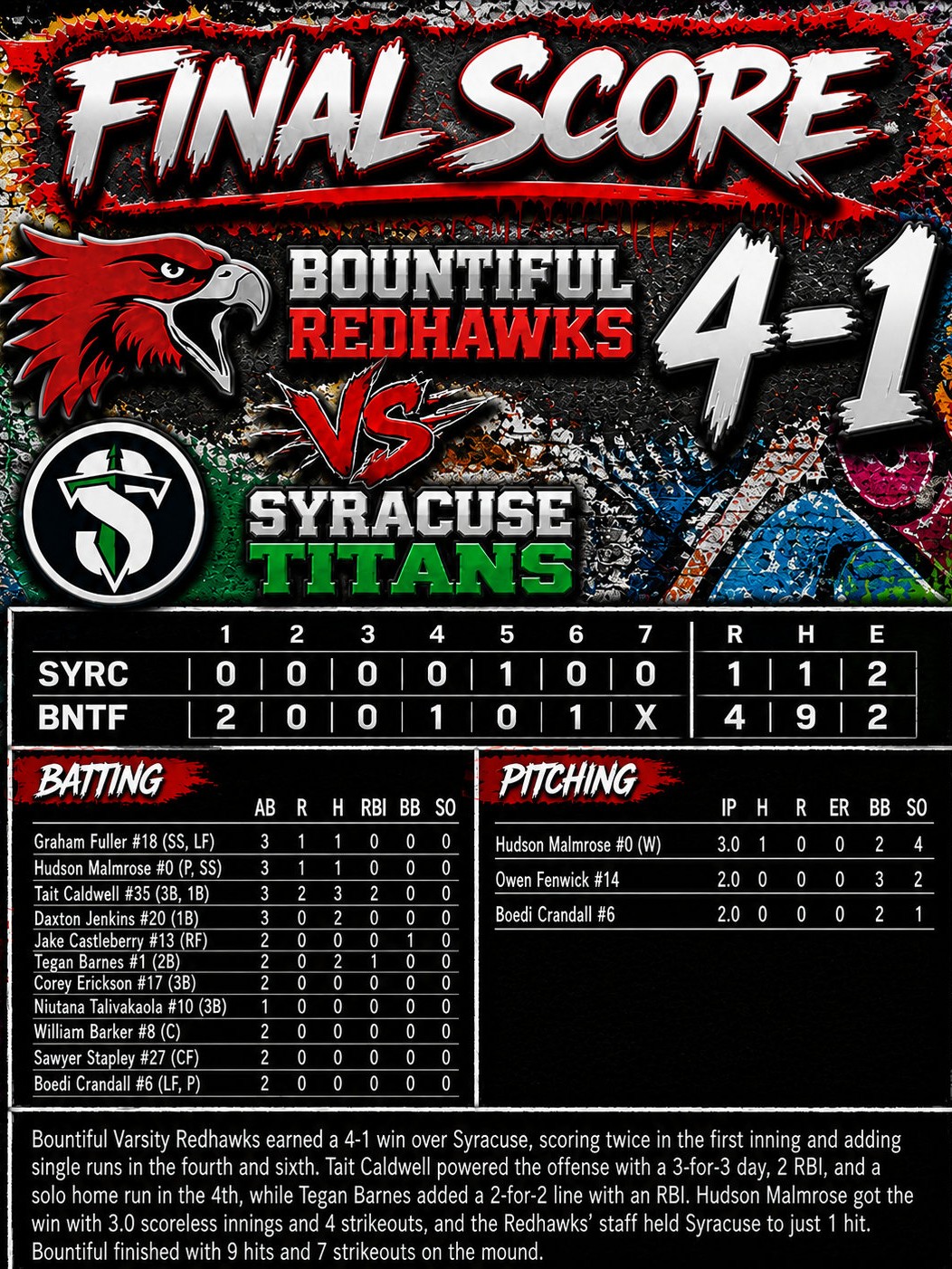
Your team just played a great game — and now those stats are buried in a scoring app. But coaches and team managers rarely have the time to retype them by hand or design highlights from scratch.
If your team scores games using the popular GameChanger app, you can export your box score and turn it into professional sports graphics automatically. Here is the step-by-step guide.
See also: GameChanger box score to Instagram graphic — the layouts, plan tiers, and review step at a glance.
1. Export Your Box Score from GameChanger
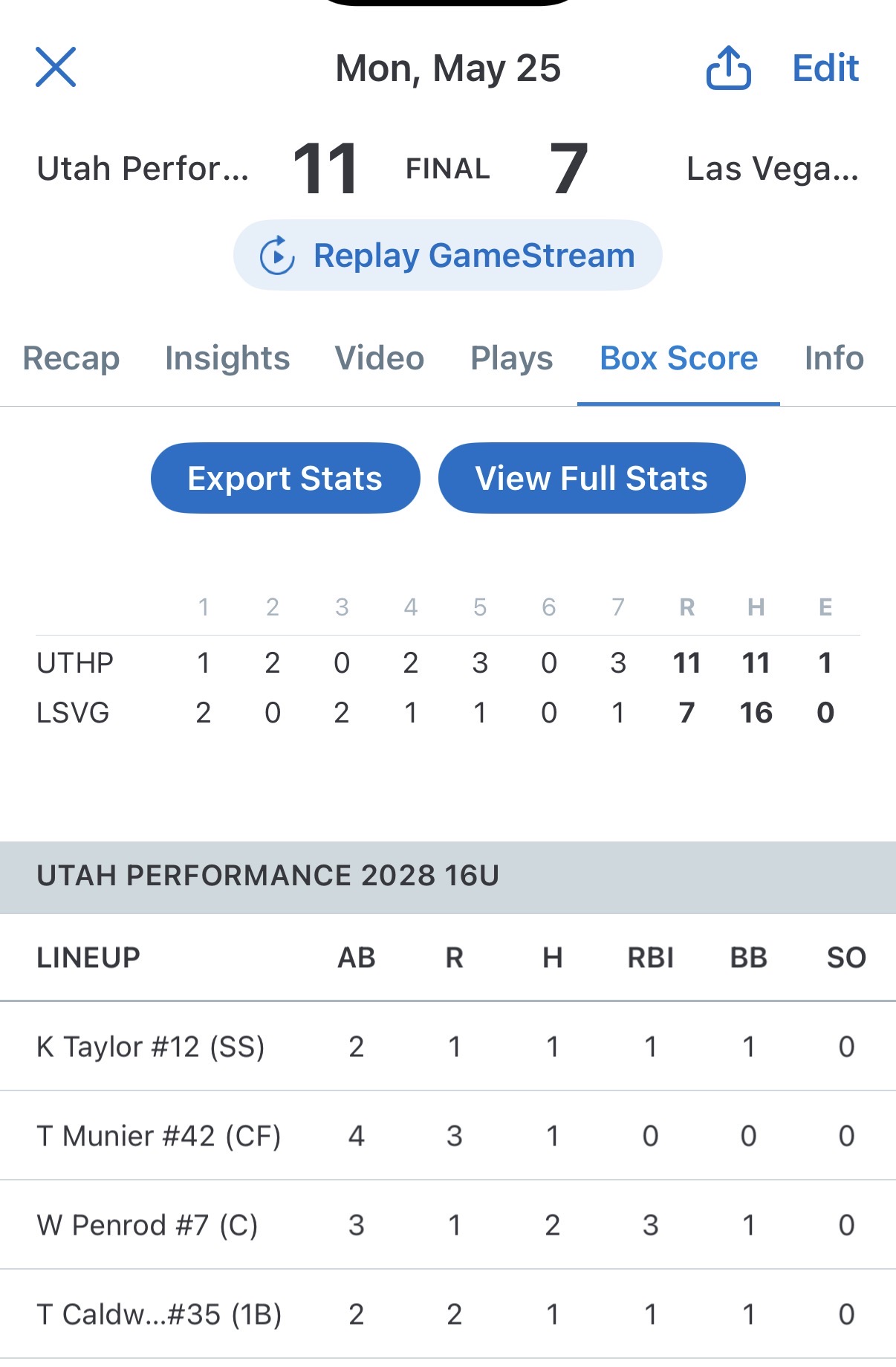
After the game, open it up in GameChanger:
- Step 1: Pick the completed game and open the Box Score tab.
- Step 2: Tap the blue Export Stats button.
- Step 3: Screenshot the box score and save it to Photos, or use the share button to save the PDF to Files.
Note: screenshot the full view that opens after Export Stats, so nothing gets cut off.
That’s all you need from GameChanger.
2. Drop the Box Score into Team Post Kit

Once you have the box score saved, you can skip all manual typing.
- The Upload: Pick a box score layout (like Line Score or Top Hitters) in the Team Post Kit builder and drop in your screenshot or PDF.
- The Magic: The final score, inning-by-inning runs, and player stats are pulled out automatically — no retyping anything.
3. Auto-Rank Your Top Performers
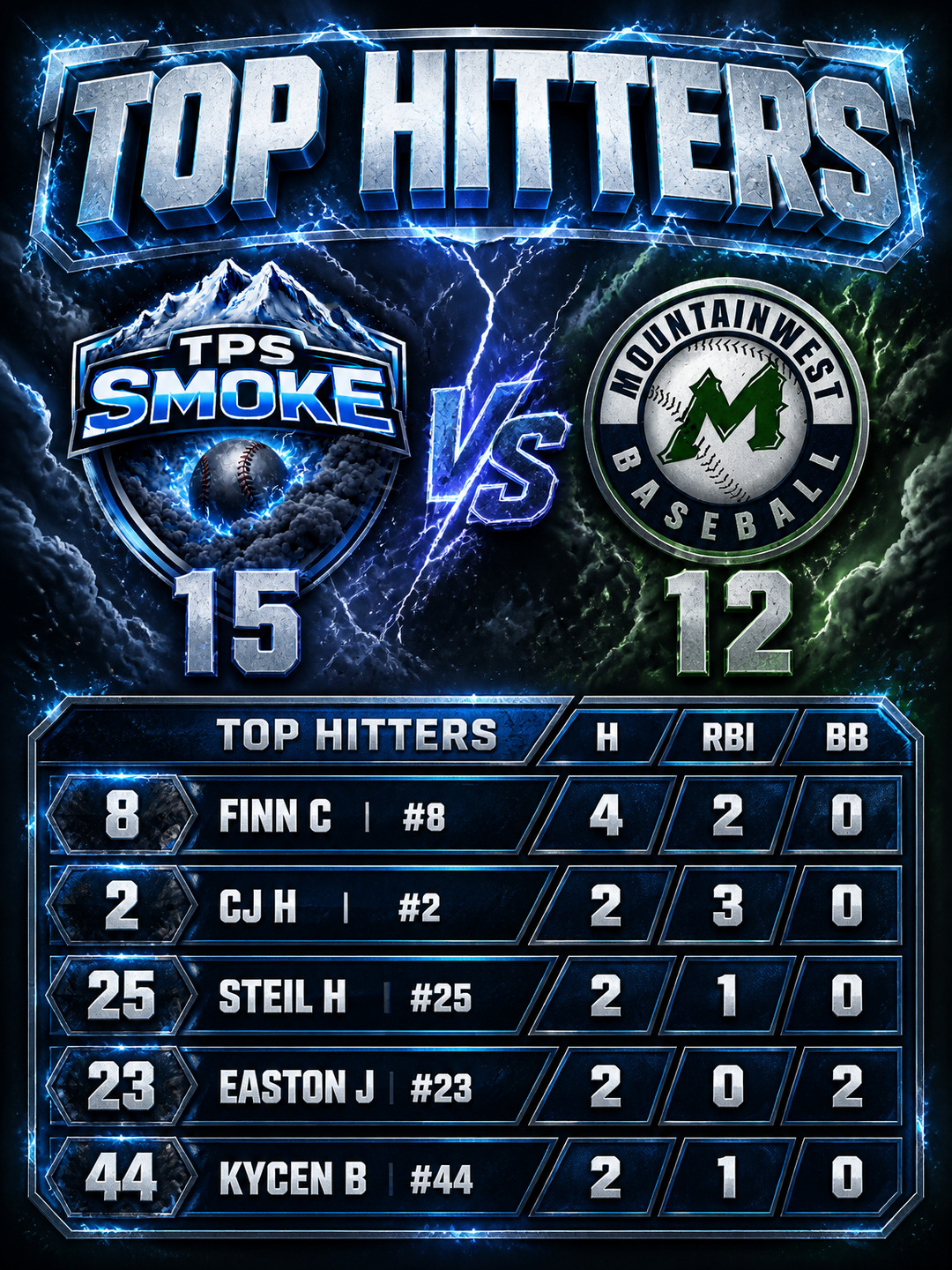
Fans love seeing standout athletes get their moment, and Team Post Kit makes it easy to put them front and center.
- How it works: Team Post Kit looks at the whole box score — hits, RBIs, walks, steals — and makes it easy to highlight their achievements.
- The output: Your top performers card fills itself in. Give the stats a quick look, tweak anything you want, and download your finished graphic.
Turn Stats into Hype
Don’t let your team’s hard work stay hidden in a stat app. Export your GameChanger box score, drop it into the Team Post Kit builder, and start posting professional highlight cards that celebrate your players.